
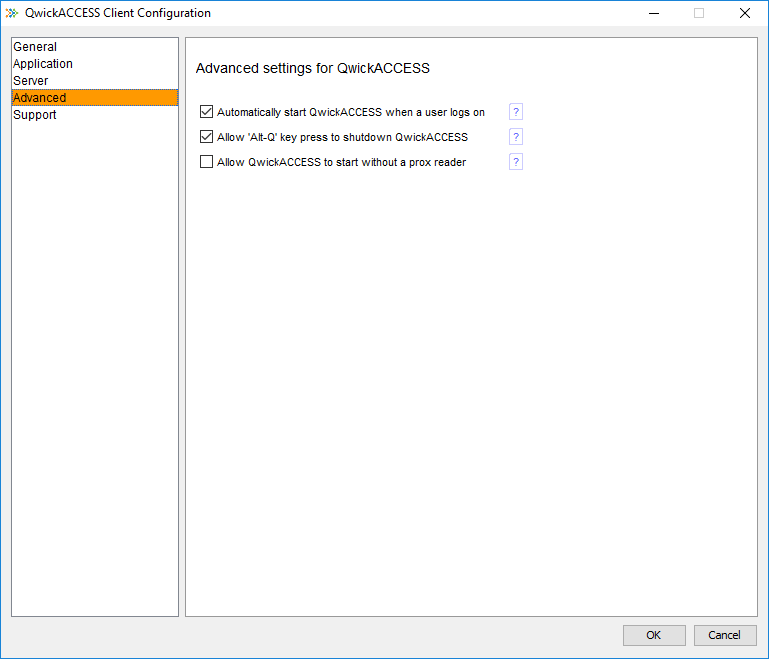
Advanced Options
Automatically start QwickACCESS when a user logs in
This option will automatically start QwickACCESS (QA) when a user logs in. If your environment contains workstations that use generic automatic log-in when started (or re-booted) this is an advisable option.
Auto-start is enabled by default.
Allow "Alt-Q" hot-key for QwickACCESS shutdown
The "Alt-Q" function shuts down the entire QwickACCESS application. This feature can only be enabled if the "Tap your badge here" screen is enabled.
Allow "Alt-Q" is enabled by default.
Allow QwickACCESS to Start without a prox reader
Select this option to allow QwickACCESS to start without a proximity badge reader plugged in. If this option is checked the "Tap your badge screen" will not be displayed instead a manual log-on screen will be displayed. When this option is enabled closing the manual log-on screen will stop the entire application.
Allow QwickACCESS to Start without a prox reader is disabled by default.
User interface
Show the Tap your badge to begin screen
This is the default user interface welcome screen a user interacts with on a QwickACCESS workstation (see screen shot below).
This screen is turned on by default and may be turned off if preferred.
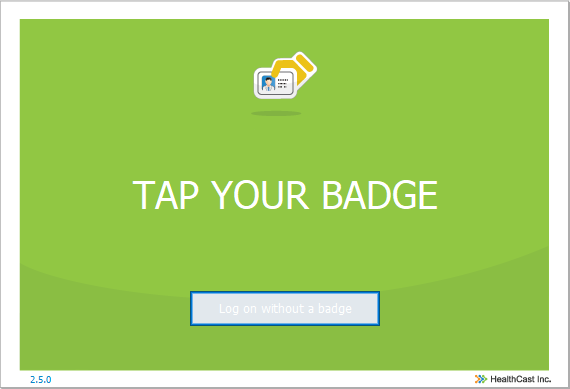
Enable/Disable Tap Screen
To enable/disable the the "TAP YOUR BADGE" welcome screen, you will need to edit the qa.ini file.
File Location
C:\ProgramData\HealthCast\QwickACCESS
Enable
- Set
MainScreenEnabled=trueor completely remove theMainScreenEnabledsetting. - Save the change.
Disable
- Set or add
MainScreenEnabled=false. - Save the change.