
Before the Lynx 1.7.0 release, users could not reset their PIN in the Zulu application. In Lynx 1.7.0 and newer, users can now reset their PIN using this functionality.
PIN Reset Setting
This functionality is located under Profile Settings. To set the PIN reset setting for your ThinOS endpoints, follow these steps.
-
Sign into the Lynx administrator tool.
-
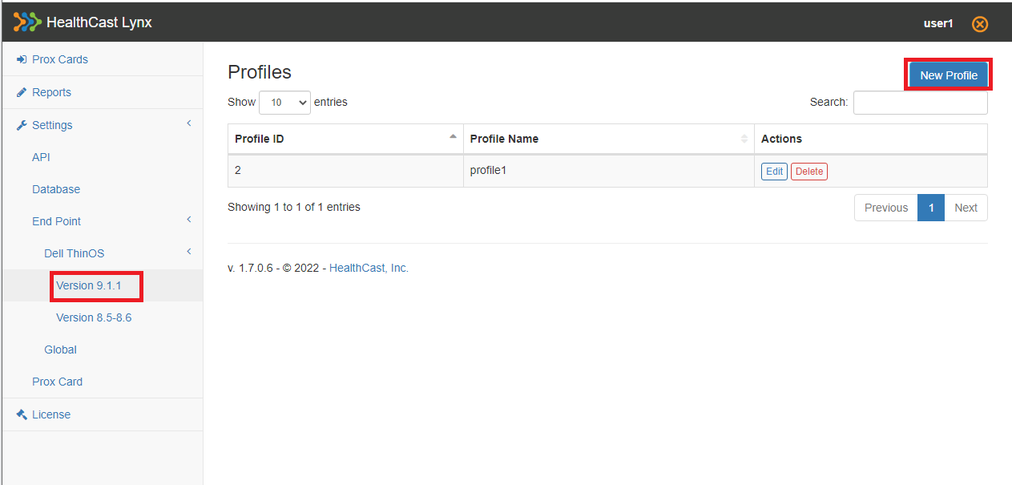
On the left-hand side, click the Settings tab.
- Click End Point.
- In the expanded menu, expand Dell ThinOS.
- Select the version of ThinOS that corresponds to the version of the target endpoints.
-
On the right-hand side, click on New Profile to create a new profile.
-
A pop-up box will appear that will allow you to customize the settings for this new profile.
- On the left, click on the PIN Reset option. Here you can enable or disable the PIN reset functionality.
.png)
- On the left, click on the PIN Reset option. Here you can enable or disable the PIN reset functionality.
PIN Reset Workflow
The PIN reset link is shown during the PIN authentication in the Zulu application.
-
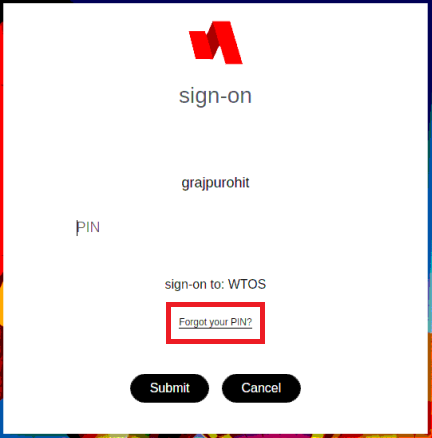
Click the "Forgot your PIN? link at the bottom.
-
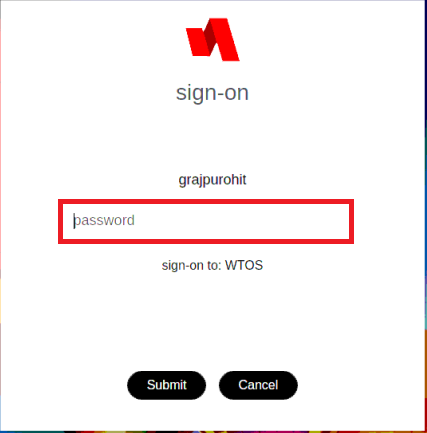
Enter your password and click the Submit button.
-
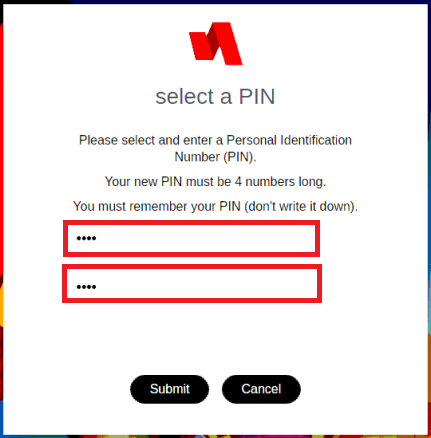
Enter and confirm your new PIN and click Submit.
- You will get a success message. Click OK to finish.
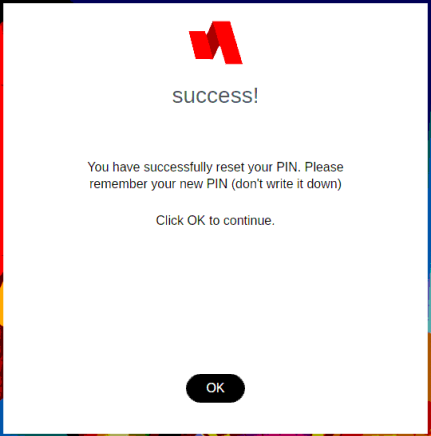
- You will get a success message. Click OK to finish.