
This guide explains how to use the XA Help Desk application, which is intended for use by help desk personnel to unlock accounts when users have failed to authenticate successfully and/or modify application parameters (i.e. passwords) for an XA user. It assumes you are comfortable in a help desk environment and that you are familiar with XA (logging in, application parameters, XA desktop, etc.).
Help Desk Tool Requirements
- The XA Client is installed on the workstation
- The help desk user is an XA user
- The help desk user is given permission (in the XA Administrator) to use the tool.
Using the ExactAccess Help Desk Tool
Opening the Tool
- Log into XA as a user with permissions to run the Help Desk Tool.
- Select the XA Help Desk link on the desktop (or Start => Programs => HealthCast => ExactAccess => Help Desk).
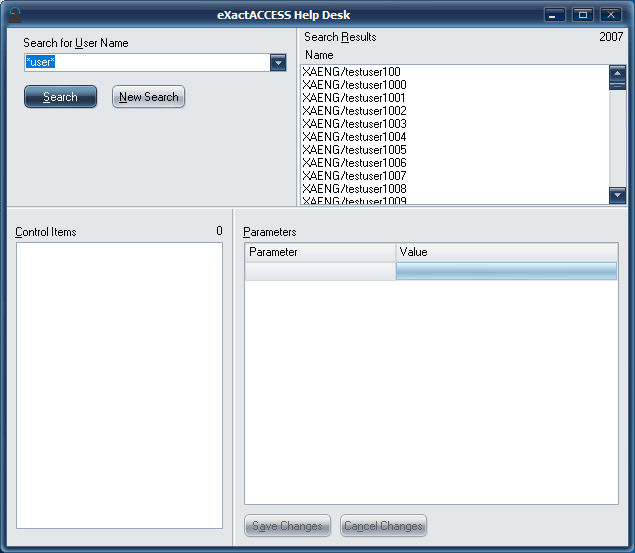
- The user interface for the Help Desk application is divided into four frames:
- Top-Left: Search for a specific username.
- Top-Right: Displays the username search results. Username(s) in this list are clickable and used to select the user whose application and/or parameters you wish to modify.
- Bottom-Left: Contains the control items (i.e. applications or specific aspects of applications) to which that user has authorized access. This is where you select the control item you wish to modify.
- Bottom-Right: Contains the parameters for that control item.
.png)
Searching for a User
-
Type in a full or partial XA username in the search field.
-
An asterisk (*) is allowed to be used as a wild card, but must be the first or last character of the partial name (ex.
*usernameorusername*).- Note: The drop-down box lists previously entered searches.
- Note: The drop-down box lists previously entered searches.
-
Click on the Search button.
-
The application will retrieve a list of matches to the name and display them in the Search Results frame.
-
Use the New Search button to begin a new search (this quickly clears the form entry fields)
Reset a User’s Application Parameters
-
Search for the XA user as described above.
-
In the top-right Search Results/Name frame, click the username to display the applications and/or control item(s) that user is allowed to access.
- Note: The time it takes for the results to display will depend on your network and system performance, as well as how many groups the user belongs to.
- Note: The time it takes for the results to display will depend on your network and system performance, as well as how many groups the user belongs to.
-
All the apps the user has permissions to will appear in the bottom-left frame. Click on the appropriate application or control item (in the lower left frame) to display its parameters in the bottom-right frame.
- Note: Passwords will be shown as asterisks (*).
- Note: Passwords will be shown as asterisks (*).
-
Double-click the parameter you want to modify or click to highlight it then select the ellipsis (...) option to edit it.
- Note: You may modify one or many parameters in this transaction.
- Note: You may modify one or many parameters in this transaction.
-
When finished, click the Save Changes button.
-
If you want to cancel any changes made to the parameters, choose Cancel Changes.
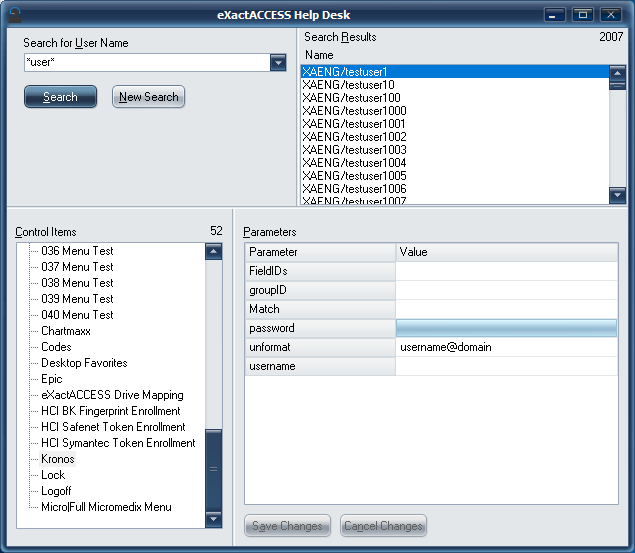
The parameters that appear in the bottom-right frame are application-dependent. Some applications may have more parameters than others. Applications that display no parameters use Active Directory passthrough (the user's network credentials are passed through to the application with no user interaction).